
Script Panorama360Capture memungkinkan kamu mengambil panorama 360° langsung dari scene Unity dan menyimpannya sebagai gambar PNG dalam format equirectangular 2:1.
Setelah gambar dibuat, hasilnya bisa langsung diuji menggunakan 360° Viewer.
1. Tambahkan Script ke Camera
Buat atau pilih Camera di scene Unity, kemudian tambahkan script Panorama360Capture ke GameObject tersebut.
Script sudah menggunakan:
[RequireComponent(typeof(Camera))]
sehingga Camera akan otomatis tersedia jika komponen tersebut belum ada.
using UnityEngine;
using System.IO;

#if UNITY_EDITOR
using UnityEditor;
#endif

// Cara pakai:
// 1. Attach script ini ke GameObject yang punya komponen Camera
//    (atau GameObject kosong, Camera akan otomatis ditambahkan
//    karena ada [RequireComponent]).
// 2. Atur posisi kamera di titik tempat kamu ingin mengambil panorama.
// 3. Klik kanan komponen ini di Inspector -> pilih "Capture 360 Panorama"
//    (bisa saat Play Mode maupun Edit Mode), ATAU panggil
//    method CapturePanorama() dari script lain / UI Button.
// 4. Akan muncul Save File dialog untuk memilih lokasi penyimpanan .png.
[RequireComponent(typeof(Camera))]
public class Panorama360Capture : MonoBehaviour
{
    [Header("Pengaturan Cubemap")]
    [Tooltip("Resolusi tiap sisi cubemap internal. Semakin tinggi = semakin detail tapi semakin lambat.")]
    [Min(16)] public int cubemapFaceSize = 1024;

    [Header("Pengaturan Output Equirectangular")]
    [Tooltip("Lebar gambar panorama output (disarankan kelipatan 2)")]
    [Min(16)] public int outputWidth = 4096;
    [Tooltip("Tinggi gambar panorama output (idealnya = setengah dari lebar, rasio 2:1)")]
    [Min(16)] public int outputHeight = 2048;

    [Header("Output File")]
    [Tooltip("Nama file default yang muncul di save dialog (tanpa ekstensi)")]
    public string defaultFileName = "panorama360";

    [Tooltip("Folder awal saat save dialog dibuka. Kosongkan = folder default (persistentDataPath)")]
    public string defaultFolderPath = "";

    private Camera cam;

    // Urutan face cubemap yang dipakai konsisten di seluruh script
    private static readonly CubemapFace[] FaceOrder =
    {
        CubemapFace.PositiveX,
        CubemapFace.NegativeX,
        CubemapFace.PositiveY,
        CubemapFace.NegativeY,
        CubemapFace.PositiveZ,
        CubemapFace.NegativeZ
    };

    private void Awake()
    {
        cam = GetComponent<Camera>();
    }

    [ContextMenu("Capture 360 Panorama")]
    public void CapturePanorama()
    {
        if (cam == null) cam = GetComponent<Camera>();

        // === 1. Tentukan lokasi save lewat dialog ===
        string fullPath = GetSavePath();
        if (string.IsNullOrEmpty(fullPath))
        {
            Debug.Log("[Panorama360Capture] Capture dibatalkan oleh user.");
            return;
        }

        if (!fullPath.EndsWith(".png", System.StringComparison.OrdinalIgnoreCase))
            fullPath += ".png";

        // Validasi sederhana supaya tidak ada nilai aneh dari Inspector
        int faceSize = Mathf.Max(16, cubemapFaceSize);
        int width    = Mathf.Max(16, outputWidth);
        int height   = Mathf.Max(16, outputHeight);

        Cubemap cubemap = null;
        Texture2D panorama = null;

        try
        {
            // === 2. Render cubemap ===
            cubemap = new Cubemap(faceSize, TextureFormat.RGB24, false);
            if (!cam.RenderToCubemap(cubemap))
            {
                Debug.LogError("[Panorama360Capture] Gagal merender cubemap. " +
                               "Pastikan platform/device mendukung RenderToCubemap.");
                return;
            }

            // === 3. Ambil pixel tiap sisi cubemap ===
            Color[][] faces = new Color[FaceOrder.Length][];
            for (int i = 0; i < FaceOrder.Length; i++)
                faces[i] = cubemap.GetPixels(FaceOrder[i]);

            // === 4. Bangun equirectangular ===
            panorama = BuildEquirectangular(faces, faceSize, width, height);

            // === 5. Simpan ke path yang dipilih user ===
            SaveTextureAsPng(panorama, fullPath);

            Debug.Log("[Panorama360Capture] Panorama 360 disimpan di: " + fullPath);
        }
        catch (System.Exception e)
        {
            Debug.LogError("[Panorama360Capture] Terjadi error saat capture: " + e);
        }
        finally
        {
            // === 6. Bersihkan resource sementara (aman di Edit & Play Mode) ===
            DestroySafe(cubemap);
            DestroySafe(panorama);
        }
    }

    // ---------------------------------------------------------------------
    // Save dialog
    // ---------------------------------------------------------------------
    private string GetSavePath()
    {
        string folder = string.IsNullOrEmpty(defaultFolderPath)
            ? Application.persistentDataPath
            : defaultFolderPath;

#if UNITY_EDITOR
        // Save dialog native di Editor (jalan di Edit Mode maupun Play Mode)
        return EditorUtility.SaveFilePanel(
            "Simpan Panorama 360",
            folder,
            defaultFileName,
            "png"
        );
#else
        // Fallback di build: simpan otomatis ke persistentDataPath
        Debug.LogWarning("[Panorama360Capture] Save dialog native tidak tersedia di build. " +
                         "Menyimpan otomatis ke persistentDataPath.");
        if (!Directory.Exists(folder)) Directory.CreateDirectory(folder);
        return Path.Combine(folder, defaultFileName + ".png");
#endif
    }

    // ---------------------------------------------------------------------
    // Equirectangular builder
    // ---------------------------------------------------------------------
    private Texture2D BuildEquirectangular(Color[][] faces, int faceSize, int width, int height)
    {
        var panorama = new Texture2D(width, height, TextureFormat.RGB24, false);
        var outputPixels = new Color[width * height];

        for (int y = 0; y < height; y++)
        {
            float v = (float)y / (height - 1);
            float theta = (v - 0.5f) * Mathf.PI; // latitude: -pi/2 .. pi/2

            for (int x = 0; x < width; x++)
            {
                float u = (float)x / (width - 1);
                float phi = (u - 0.5f) * 2f * Mathf.PI; // longitude: -pi .. pi

                Vector3 dir = new Vector3(
                    Mathf.Cos(theta) * Mathf.Sin(phi),
                    Mathf.Sin(theta),
                    Mathf.Cos(theta) * Mathf.Cos(phi)
                );

                outputPixels[y * width + x] = SampleCubemap(dir, faces, faceSize);
            }
        }

        panorama.SetPixels(outputPixels);
        panorama.Apply();
        return panorama;
    }

    // ---------------------------------------------------------------------
    // Simpan PNG
    // ---------------------------------------------------------------------
    private void SaveTextureAsPng(Texture2D texture, string fullPath)
    {
        byte[] pngData = texture.EncodeToPNG();

        string folder = Path.GetDirectoryName(fullPath);
        if (!string.IsNullOrEmpty(folder) && !Directory.Exists(folder))
            Directory.CreateDirectory(folder);

        File.WriteAllBytes(fullPath, pngData);
    }

    // ---------------------------------------------------------------------
    // Cubemap sampling
    // ---------------------------------------------------------------------
    // Menentukan sisi cubemap mana yang harus disample berdasarkan arah 3D,
    // lalu mengambil warnanya dengan interpolasi bilinear.
    private Color SampleCubemap(Vector3 dir, Color[][] faces, int faceSize)
    {
        float absX = Mathf.Abs(dir.x);
        float absY = Mathf.Abs(dir.y);
        float absZ = Mathf.Abs(dir.z);

        int faceIndex;
        float u, v, ma;

        if (absX >= absY && absX >= absZ)
        {
            ma = absX;
            if (dir.x > 0) { faceIndex = 0; u = -dir.z; v = -dir.y; } // +X
            else           { faceIndex = 1; u =  dir.z; v = -dir.y; } // -X
        }
        else if (absY >= absX && absY >= absZ)
        {
            ma = absY;
            if (dir.y > 0) { faceIndex = 2; u = dir.x; v =  dir.z; } // +Y
            else           { faceIndex = 3; u = dir.x; v = -dir.z; } // -Y
        }
        else
        {
            ma = absZ;
            if (dir.z > 0) { faceIndex = 4; u =  dir.x; v = -dir.y; } // +Z
            else           { faceIndex = 5; u = -dir.x; v = -dir.y; } // -Z
        }

        u = (u / ma + 1f) * 0.5f;
        v = (v / ma + 1f) * 0.5f;

        return SampleBilinear(faces[faceIndex], faceSize, u, v);
    }

    private Color SampleBilinear(Color[] face, int size, float u, float v)
    {
        u = Mathf.Clamp01(u);
        v = Mathf.Clamp01(v);

        float fx = u * (size - 1);
        float fy = v * (size - 1);

        int x0 = Mathf.FloorToInt(fx);
        int y0 = Mathf.FloorToInt(fy);
        int x1 = Mathf.Min(x0 + 1, size - 1);
        int y1 = Mathf.Min(y0 + 1, size - 1);

        float tx = fx - x0;
        float ty = fy - y0;

        Color c00 = face[y0 * size + x0];
        Color c10 = face[y0 * size + x1];
        Color c01 = face[y1 * size + x0];
        Color c11 = face[y1 * size + x1];

        Color cx0 = Color.Lerp(c00, c10, tx);
        Color cx1 = Color.Lerp(c01, c11, tx);

        return Color.Lerp(cx0, cx1, ty);
    }

    // ---------------------------------------------------------------------
    // Utility: Destroy aman di Edit Mode & Play Mode
    // ---------------------------------------------------------------------
    private void DestroySafe(Object obj)
    {
        if (obj == null) return;

        if (Application.isPlaying)
        {
            // Runtime / Play Mode
            Destroy(obj);
        }
        else
        {
            // Edit Mode (mis. dipanggil dari ContextMenu saat tidak Play)
#if UNITY_EDITOR
            DestroyImmediate(obj);
#else
            Destroy(obj);
#endif
        }
    }
}
2. Atur Posisi Camera
Letakkan Camera di posisi yang ingin dijadikan pusat panorama.
Misalnya di:
- tengah ruangan
- area outdoor
- dalam kendaraan
- lokasi tertentu pada game environment
Panorama akan dibuat berdasarkan posisi Camera tersebut.
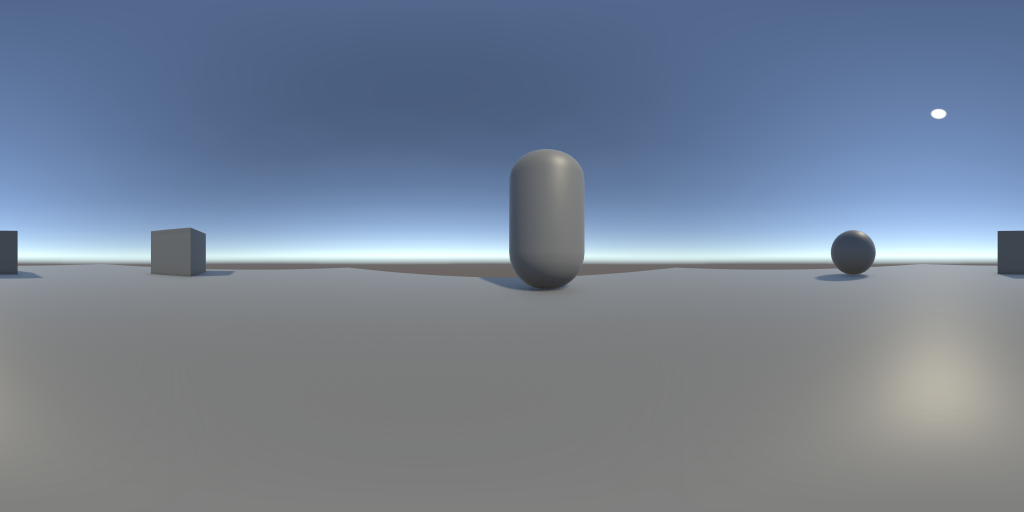
Contoh hasil panorama:
3. Atur Resolusi
Pada Inspector kamu akan menemukan beberapa pengaturan.
Cubemap Face Size
1024
Menentukan resolusi internal setiap sisi cubemap.
Untuk percobaan awal, 1024 sudah cukup.
Output Width
4096
Output Height
2048
Gunakan rasio 2:1 agar sesuai dengan format panorama equirectangular.
Contoh:
2048 × 1024
4096 × 2048
8192 × 4096
Untuk pengujian awal, saya menyarankan:
Cubemap Face Size: 1024
Output Width:      4096
Output Height:     2048
4. Capture Panorama
Setelah semuanya siap, klik menu pada komponen Panorama360Capture di Inspector dan pilih:
Capture 360 Panorama
Script akan:
- Merender scene ke cubemap
- Mengambil keenam sisi cubemap
- Mengubahnya menjadi panorama equirectangular
- Membuka dialog penyimpanan
- Menyimpan hasil sebagai file PNG
Contohnya:
panorama360.png
Script dapat digunakan saat Edit Mode maupun Play Mode.
5. Hasil Gambar
Hasilnya adalah gambar panorama dengan format seperti:
4096 × 2048
Jangan khawatir jika ketika dibuka sebagai gambar biasa bentuknya terlihat agak aneh atau memanjang. Itu memang merupakan karakteristik format equirectangular.
Gambar tersebut memang dirancang untuk digunakan oleh panorama viewer.
6. Tes Panorama di 360° Viewer
Setelah mendapatkan file PNG, buka:
Kemudian upload file panorama360.png yang baru saja dibuat dari Unity.
Jika gambar berhasil diproses, kamu dapat langsung:
- Memutar pandangan ke kiri dan kanan
- Melihat ke atas dan bawah
- Menjelajahi seluruh lingkungan 360°
Workflow Singkat
Unity Scene
    ↓
Pasang Panorama360Capture ke Camera
    ↓
Atur posisi Camera
    ↓
Capture 360 Panorama
    ↓
Simpan PNG
    ↓
Upload ke 360° Viewer
    ↓
Jelajahi panorama 360°
Dengan script ini, kamu bisa mengubah scene Unity menjadi gambar panorama 360° tanpa perlu kamera 360° khusus atau software stitching eksternal.